Next week at DerbyCon 6, Will Schroeder (aka Will Harmjoy, @Harmj0y) & I are presenting on enterprise security, “Attacking EvilCorp: Anatomy of a Corporate Hack.”
We call this one the “How You Got Hacked” presentation.
The company and events are fictional.
The techniques are real.
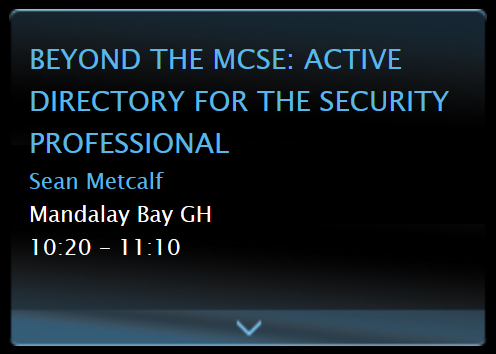
On Saturday, September 24th, 2016, Will & I are speaking at DerbyCon Track 1 (Break Me) in the Regency North room from 10:00am to 10:50am.
Here’s the talk description from the DerbyCon website:
With the millions of dollars invested in defensive solutions, how are attackers still effective?
Why do defensive techniques seem to rarely stop or slow down even mid-tier adversaries?
And is there anything the underfunded admin can do to stop the carnage?
Join us in a shift to “assume breach” and see how an attacker can easily move from a single machine compromise to a complete domain take over.
Instead of “death by PowerPoint,” see first-hand how a fictional corporation suffers “death by a thousand cuts”. The fictional EvilCorp presents their top defensive tools and practically dares someone to attack the network. The battle of Red vs. Blue unfolds showing EvilCorp’s network submit to the unrelenting attacks by an experienced adversary.
When the dust settles, the Red Team looks victorious. But what, if anything, could have tipped the scales in the other direction?
In this demo-heavy session (several demos are shown to demonstrate modern attack effectiveness), we showcase the latest attack techniques and ineffective defenses still used to protect companies. Defense evasion tools and techniques are detailed as well as attack detection methods. Effective mitigation strategies are highlighted and the Blue Team is provided a roadmap to properly shore up defenses that can stop all but the most determined attacker.
This presentation is not a standard conference talk with lots of slides. In fact, there are only a handful of slides, mostly to highlight how to mitigate the demonstrated attacks. Over the course of the 45 minute presentation, we show several attack demonstrations highlighting typical phases of how a company could be hacked and talk through the issues in the environment and real world mitigations. Instead of walking through the attacks and showing slides, we present this as a “skit”.
During the talk, Sean assumes the role of E Corp CIO who is on stage at a conference presenting about their perfect security. He effectively challenges the world to hack his company.
Will takes up this challenge and explains the problems with E Corp’s security posture by showing several demos how he can pwn them in about 25 minutes.
After this “skit”, we switch back to more traditional presentation to cover real-world mitigations.
For the curious, here’s an outline of our talk at DerbyCon next week:
Continue reading


Recent Comments